> ## Documentation Index
> Fetch the complete documentation index at: https://help.maestra.io/llms.txt
> Use this file to discover all available pages before exploring further.
# Adding Webhook-Powered Content to Campaigns
> Pull in live external data—product catalogs, showtimes, personalized offers—and render it directly in your email campaigns using webhook-powered content.
Sometimes the content you need in an email lives outside Maestra Platform—a showtime catalog, live inventory, or personalized offers from your own service. And it's not a single field: it's arrays of data you need to loop through and render into the email layout. Webhook-powered content lets you do that directly from the campaign template, no custom integration required.
This guide walks you through the setup.
***
## Step 1. Create an integration
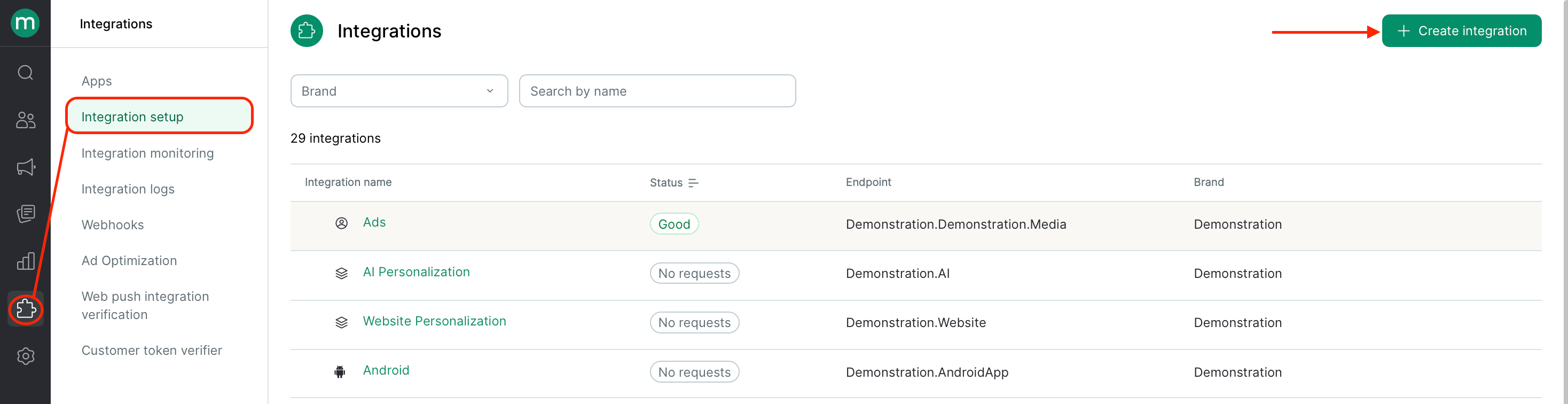
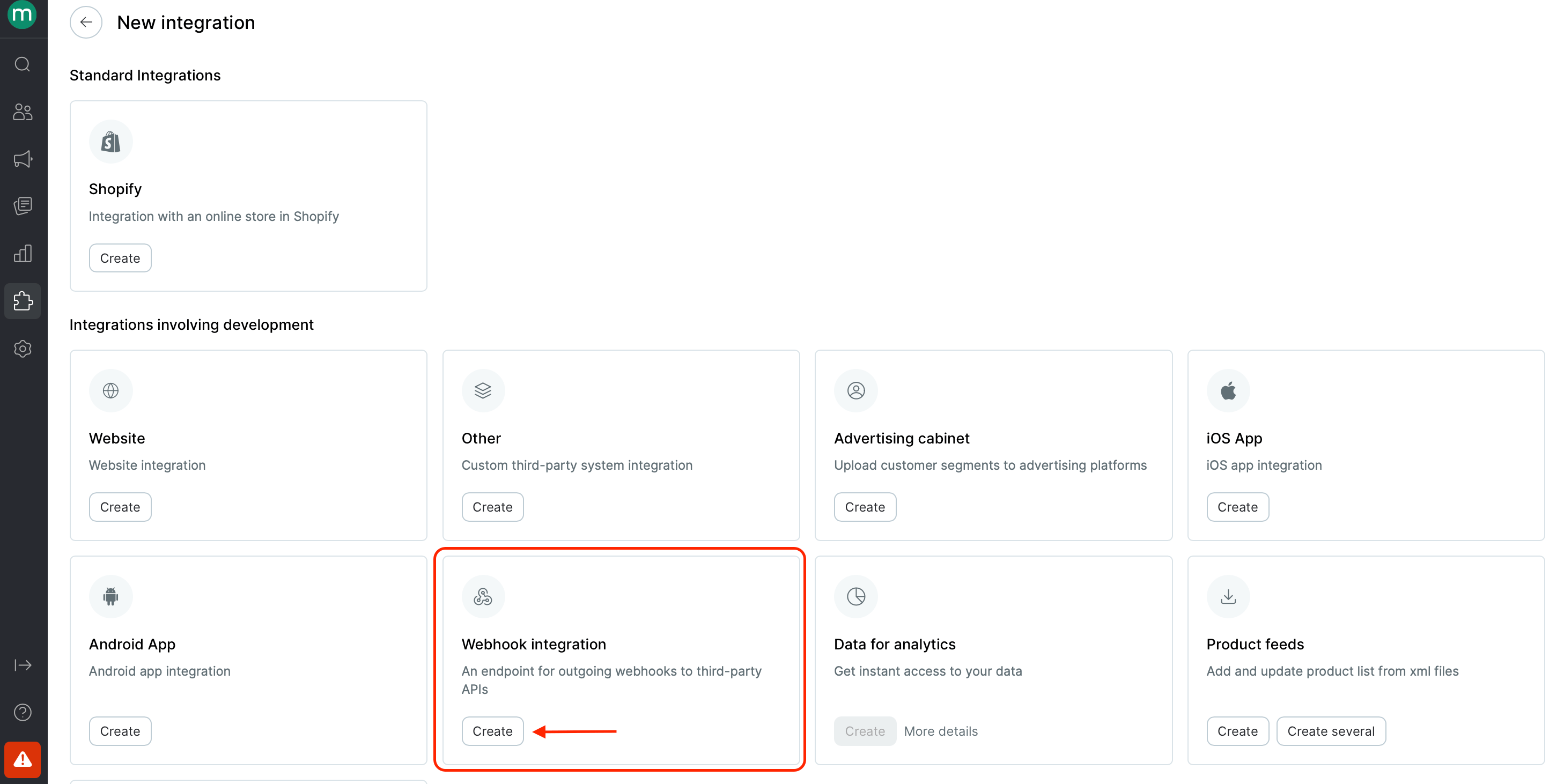
 Go to **Integrations → Add integration**, pick the **Webhook Integration** preset, and fill in:
* **URL** — the base URL of your service. You can specify just the root and add path-specific parts in each webhook separately.
* **Headers** — `Authorization`, `Content-Type`, and anything else your API requires.
* **Request rate limit per second** — set to **Not specified** so Maestra doesn't rate-limit outbound sends.
4. Click **Create**
Go to **Integrations → Add integration**, pick the **Webhook Integration** preset, and fill in:
* **URL** — the base URL of your service. You can specify just the root and add path-specific parts in each webhook separately.
* **Headers** — `Authorization`, `Content-Type`, and anything else your API requires.
* **Request rate limit per second** — set to **Not specified** so Maestra doesn't rate-limit outbound sends.
4. Click **Create**
 ***
## Step 2. Create a webhook with "Use full response as campaign content"
***
## Step 2. Create a webhook with "Use full response as campaign content"
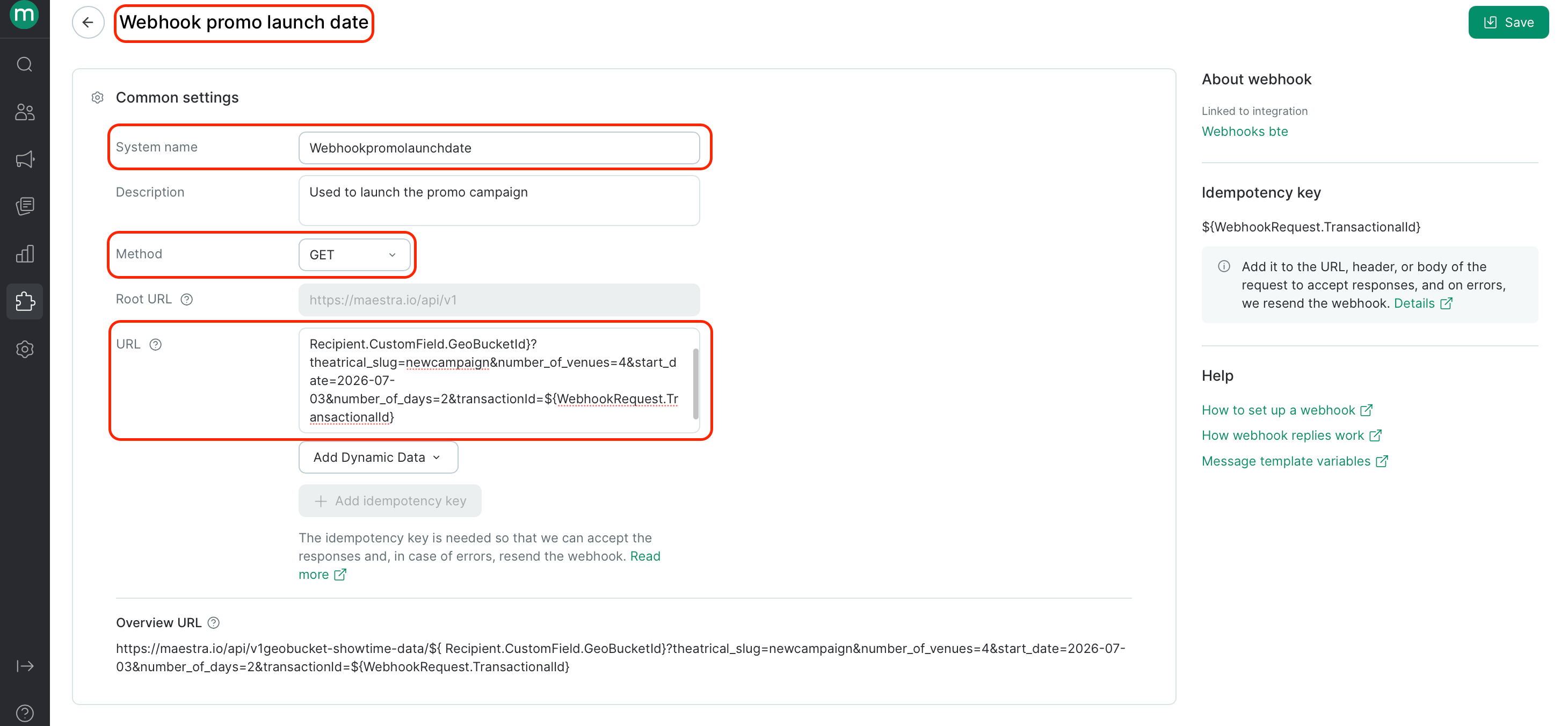
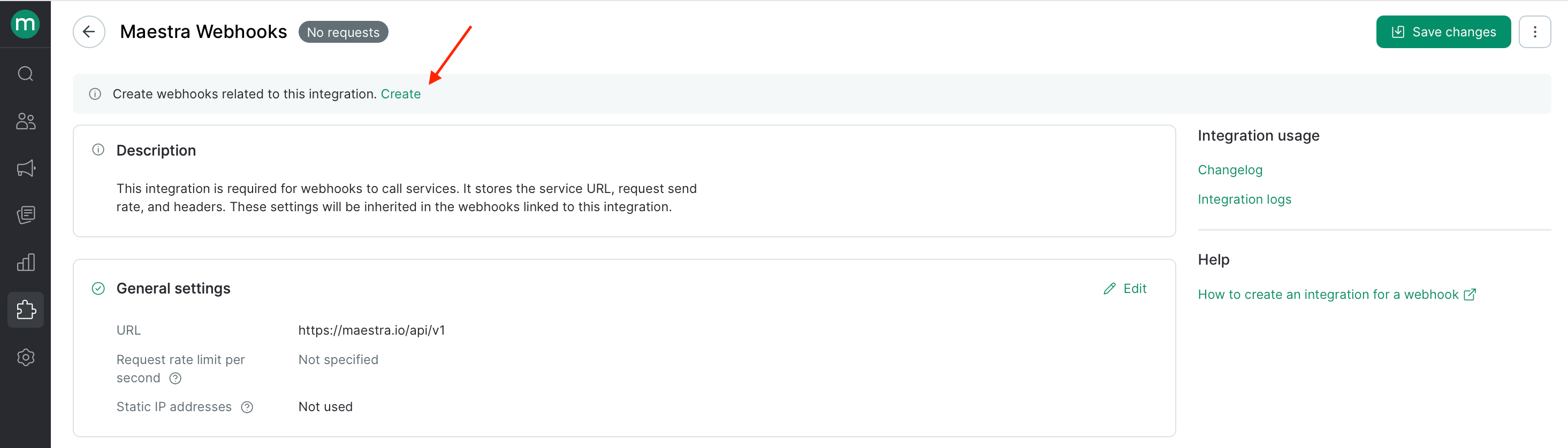 Inside the integration, click **Create** to add a webhook. Fill in the name, system name, method, and path.
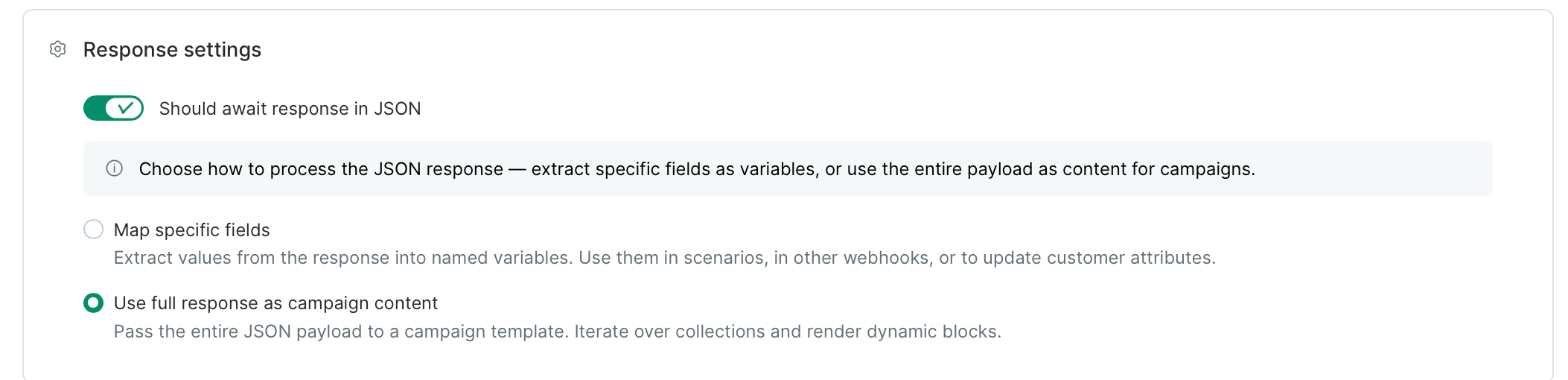
In the **Response settings** block, select **"Use full response as campaign content"**.
Webhooks support two modes:
* **Map specific fields** — the existing behavior. Used for integrations and response checks inside flow scenarios: individual values are pulled from the response by path and saved in a flow session for use in Condition nodes or campaigns as individual data points.
* **Use full response as campaign content** — the new mode. The entire JSON response becomes available inside the campaign template, where you can iterate it with `for…end for`, branch with `if`, and render content directly in your email block using Dynamic parameters.
Save the webhook.
Do **not** use dashes in the webhook system name. Use `camelCase` or `snake_case` instead.
Inside the integration, click **Create** to add a webhook. Fill in the name, system name, method, and path.
In the **Response settings** block, select **"Use full response as campaign content"**.
Webhooks support two modes:
* **Map specific fields** — the existing behavior. Used for integrations and response checks inside flow scenarios: individual values are pulled from the response by path and saved in a flow session for use in Condition nodes or campaigns as individual data points.
* **Use full response as campaign content** — the new mode. The entire JSON response becomes available inside the campaign template, where you can iterate it with `for…end for`, branch with `if`, and render content directly in your email block using Dynamic parameters.
Save the webhook.
Do **not** use dashes in the webhook system name. Use `camelCase` or `snake_case` instead.
 ***
## Step 3. Reference the webhook in your campaign
Open a campaign and reference the webhook response using this parameter syntax:
```text theme={null}
ExternalData.YourWebhookSystemName.SpecificJSONNodes
```
```text theme={null}
ExternalData.YourWebhookSystemName
```
After the webhook name, use dot notation to navigate to specific JSON nodes.
### Example: Angel Studios
The Angel API returns a nested response like this:
```json theme={null}
{
"venues": [
{
"name": "Classic Cinemas Fox Lake Theatre",
"address_text": "115 Towne Centre Lane, Fox Lake, IL",
"showtimes_by_day": [
{
"date": "2026-07-03",
"showtimes": [
{
"local_start_time_friendly": "11:15 AM",
"ticket_url": "https://www.angel.com/tickets/..."
}
]
}
]
}
]
}
```
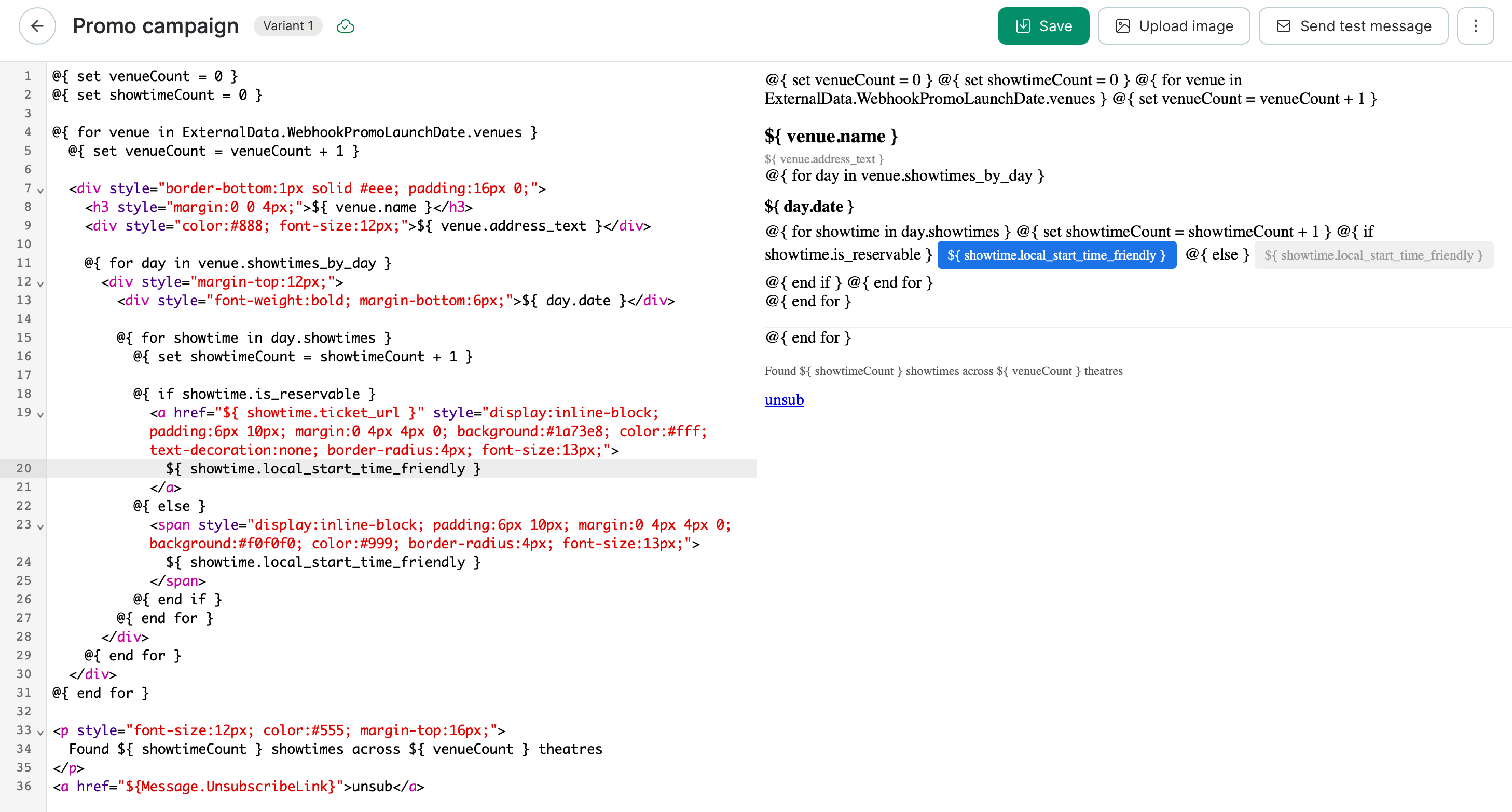
In the campaign's HTML block, use nested loops to render the full structure:
```html theme={null}
@{ for venue in ExternalData.AngelWebhookYoungWashingtonLaunchDate.venues }
***
## Step 3. Reference the webhook in your campaign
Open a campaign and reference the webhook response using this parameter syntax:
```text theme={null}
ExternalData.YourWebhookSystemName.SpecificJSONNodes
```
```text theme={null}
ExternalData.YourWebhookSystemName
```
After the webhook name, use dot notation to navigate to specific JSON nodes.
### Example: Angel Studios
The Angel API returns a nested response like this:
```json theme={null}
{
"venues": [
{
"name": "Classic Cinemas Fox Lake Theatre",
"address_text": "115 Towne Centre Lane, Fox Lake, IL",
"showtimes_by_day": [
{
"date": "2026-07-03",
"showtimes": [
{
"local_start_time_friendly": "11:15 AM",
"ticket_url": "https://www.angel.com/tickets/..."
}
]
}
]
}
]
}
```
In the campaign's HTML block, use nested loops to render the full structure:
```html theme={null}
@{ for venue in ExternalData.AngelWebhookYoungWashingtonLaunchDate.venues }
${ venue.name }
${ venue.address_text }
@{ for day in venue.showtimes_by_day }
${ day.date }
@{ for showtime in day.showtimes }
${ showtime.local_start_time_friendly }
@{ end for }
@{ end for }
@{ end for }
```
Three levels of nesting—`venues → showtimes_by_day → showtimes`—are iterated with three nested `for…end for` loops. Fields within each object are accessed with dot notation: `venue.name`, `day.date`, `showtime.ticket_url`.
 ***
## Step 4. Send the campaign
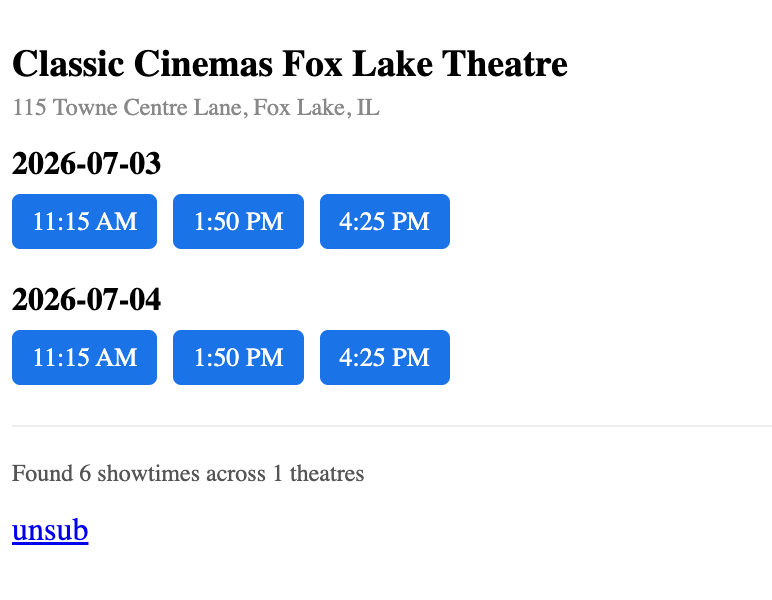
At send time, Maestra Platform calls your endpoint for each recipient, waits for the response, and injects the data into the email before delivery.
***
## Step 4. Send the campaign
At send time, Maestra Platform calls your endpoint for each recipient, waits for the response, and injects the data into the email before delivery.
 ***
## What happens if the webhook doesn't respond
If the call to your endpoint fails, the email is **not sent** to that recipient. The rest of the campaign continues normally—only the affected recipients are skipped.
Before skipping, the system retries automatically:
1. **3 attempts** on `429` and `5xx` errors
2. **1-minute pause**
3. **Up to 2 more retry cycles**
A recipient is only skipped if all retry attempts fail.
***
## Debugging
Every webhook call is logged. Go to **Integrations → Webhooks → Webhook logs** to see the full request URL, headers, response body, and HTTP status.
***
## What happens if the webhook doesn't respond
If the call to your endpoint fails, the email is **not sent** to that recipient. The rest of the campaign continues normally—only the affected recipients are skipped.
Before skipping, the system retries automatically:
1. **3 attempts** on `429` and `5xx` errors
2. **1-minute pause**
3. **Up to 2 more retry cycles**
A recipient is only skipped if all retry attempts fail.
***
## Debugging
Every webhook call is logged. Go to **Integrations → Webhooks → Webhook logs** to see the full request URL, headers, response body, and HTTP status.
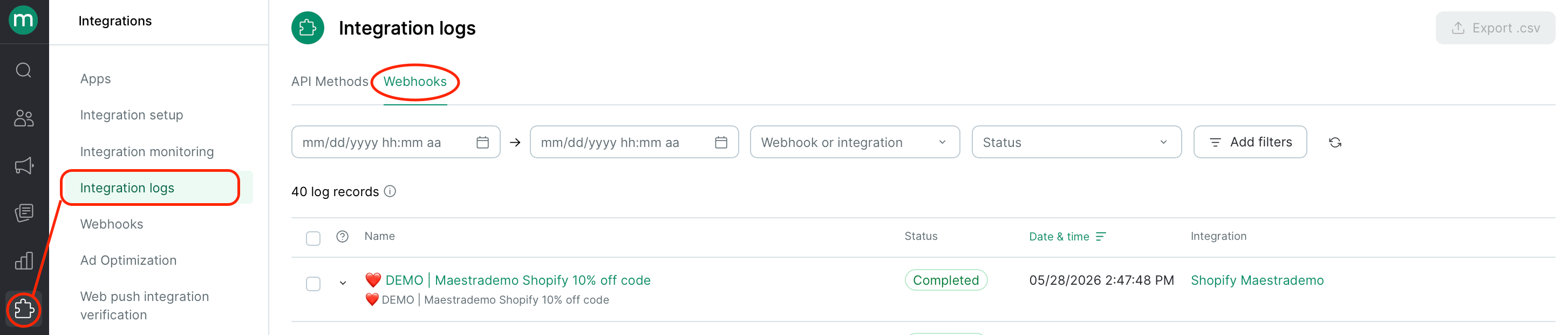
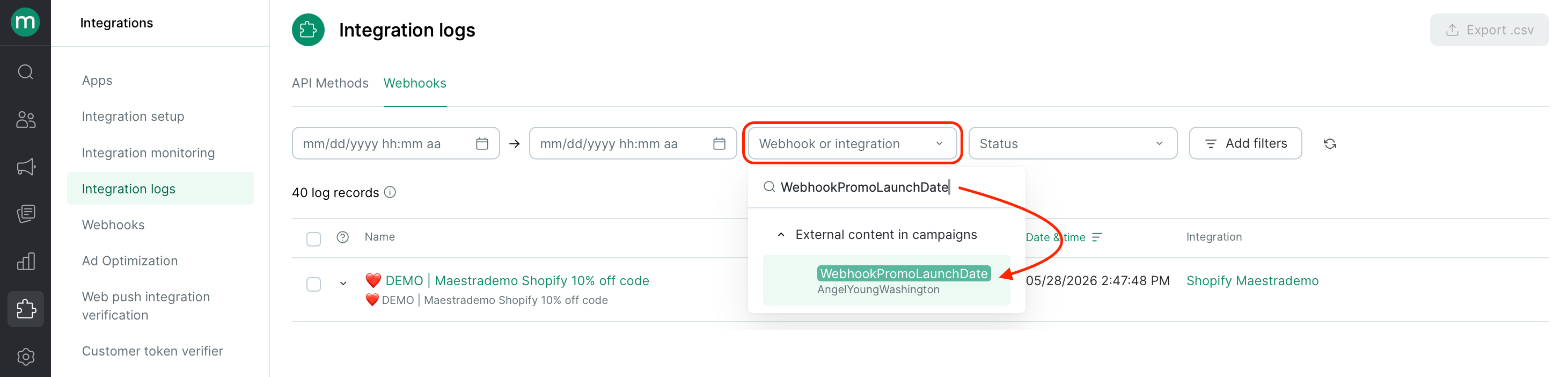
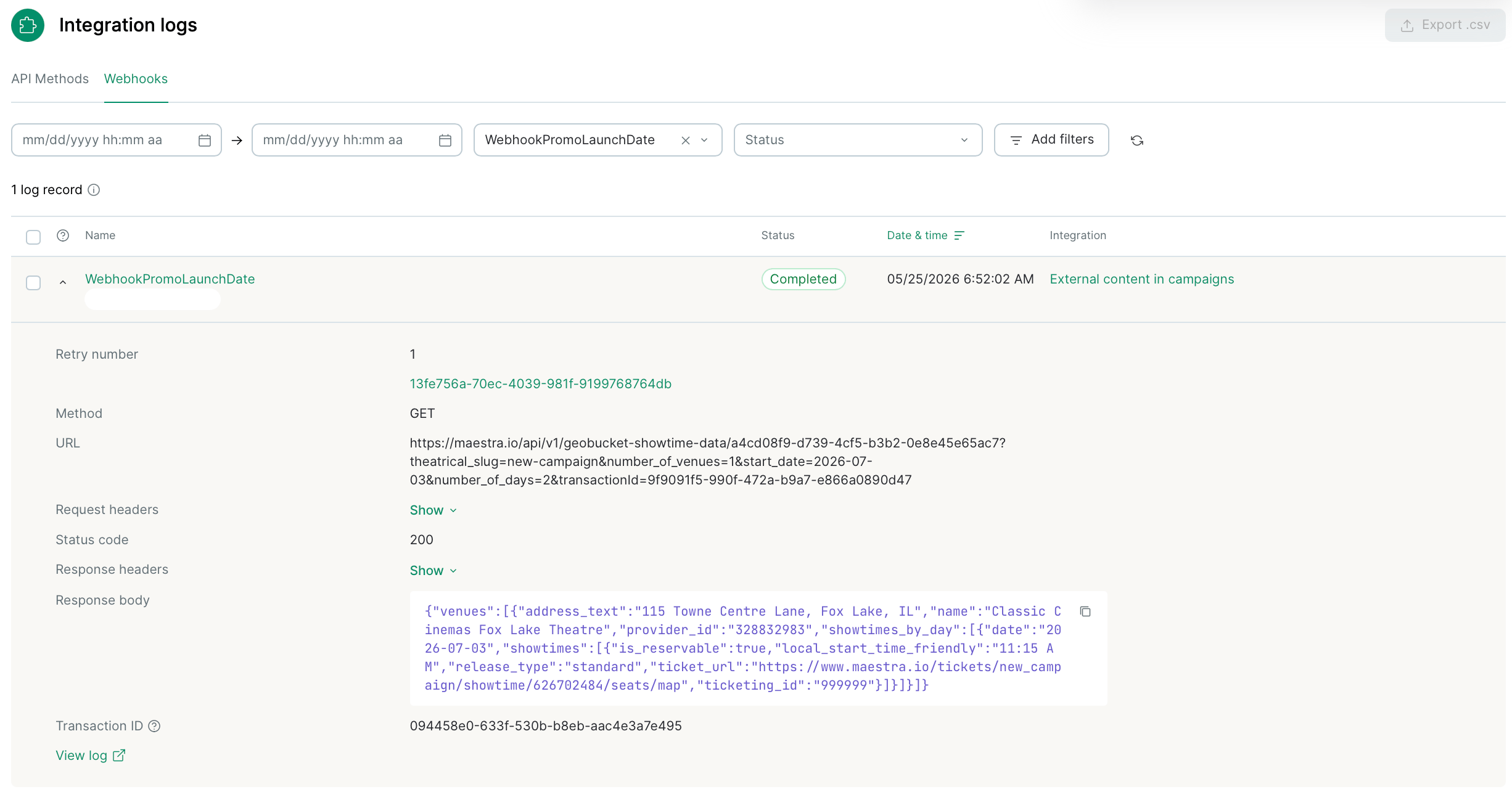 If something looks off, that's your starting point.