

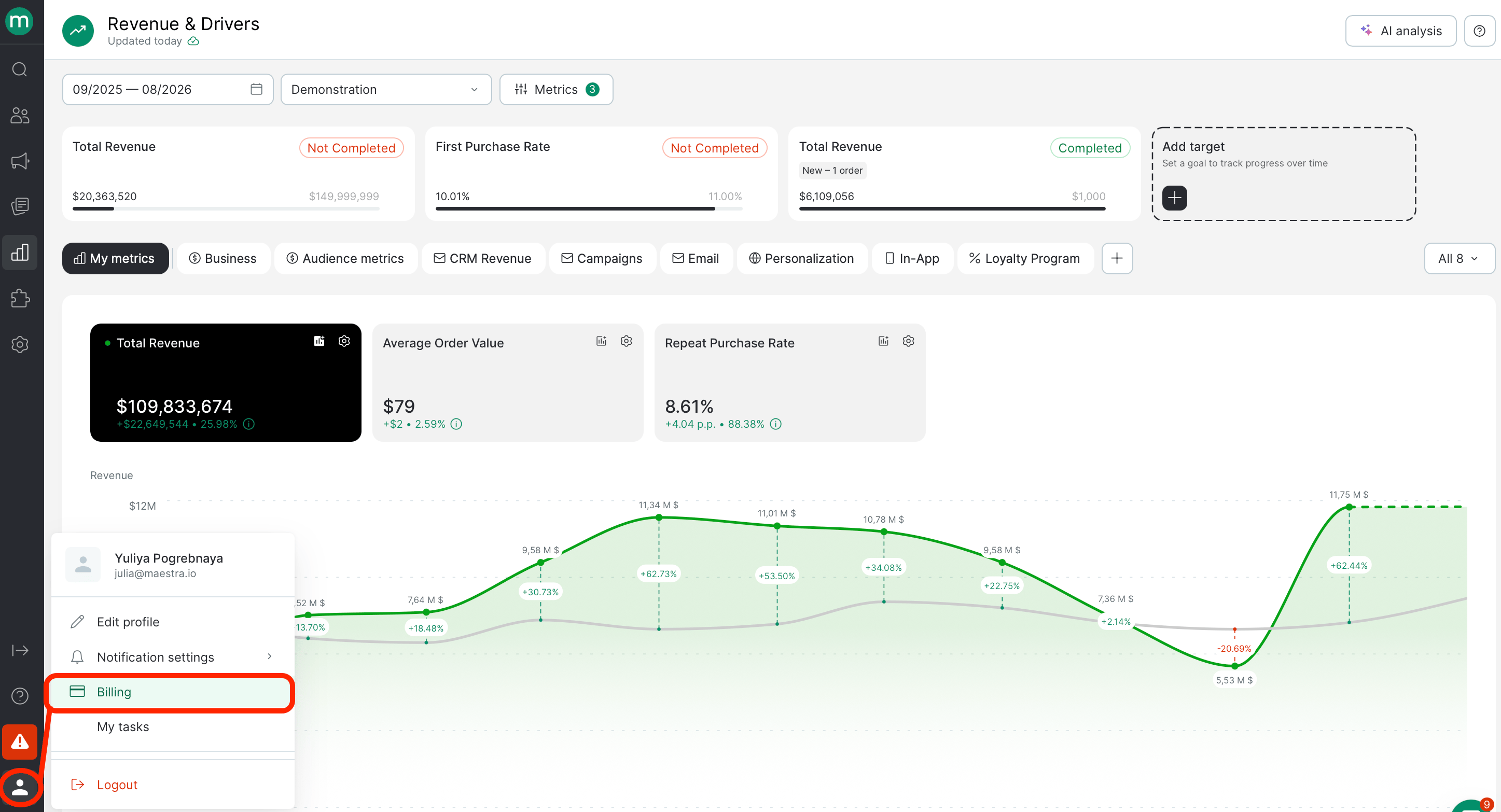
Everything on this page is specific to you. Every figure, limit, rate, and rule comes from your own contract — not a general price list. Plans differ between customers and change over time, so the numbers in this article are illustrative only. To check a real limit or rate, hover the ? icon next to any field on the page. Anything not covered by a tooltip is in your contract.
Who can see this page
Access to Billing is a separate permission, configured per user in Settings → Security → Users. To open the page you needView billing details — see permissions for the Billing section, or Permission Groups: Managing User Access for how permissions work overall. Users without billing permissions see an empty page.
Good to know:
- Turning modules on or off is a further permission, available to the project owner or to a role that’s been granted it.
- Anyone who can open the page can download the Expense Breakdown.
Quick jump to a Billing section
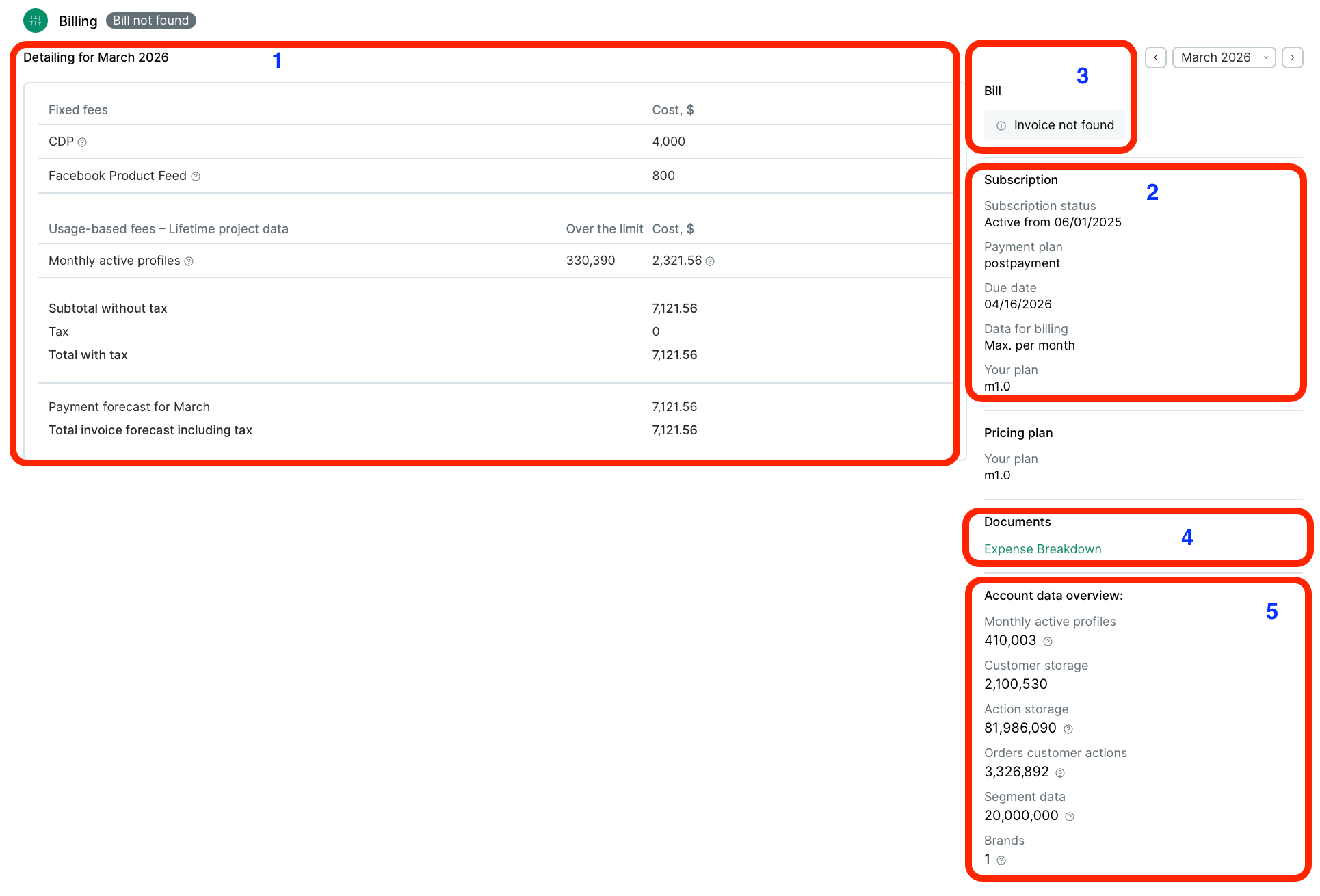
Looking for a description of a specific section? Click any card below to jump straight to it.1. Billing forecast / Detailing
Line-by-line breakdown for the current or a closed month.
2. Subscription
Your current state, plan, and payment scheme.
3. Invoice status
Where the invoice status shows up. Feature still in development.
4. Documents
Download the Expense Breakdown — closed months only.
5. Account data overview
Billable data on your project.
6. Modules
Turn paid modules on or off and see how they’re priced.
Choosing a period
Use the arrows and the dropdown in the top-right corner to switch months.
- Billing forecast for [month] — the current month. Figures are still moving and will change until the month closes.
- Detailing for [month] — a closed month. Figures are final and match your invoice.

Billing forecast
Fixed fees
The Maestra Platform fee (CDP) plus any paid modules you have enabled.- The CDP price depends on the size of your customer database. How it scales — a flat fee, a per-profile rate, or tiers — is set by your plan. Hover the ? next to CDP to see your terms.
- Modules are billed as separate fixed monthly fees. Depending on your plan, they’re expressed as an amount, as a percentage of the platform cost, or both. A module’s price is shown on its card in Enabled modules below.
Usage-based fees – Lifetime project data
Charges for data stored above the volume included in your plan.Overage is the excess, not the total. The Over the limit column shows how far past your included quota you went. Your quota is in the tooltip.
- Each row has a ? with your included limit, and the amount in Cost has its own ? explaining how that specific figure was calculated.
- Overage rates aren’t always a single flat price per unit — some plans use tiers, where the rate changes as volume grows. Check the tooltip on the Cost figure and your contract for the rule that applies to you.
Discounts
Any reductions applied to your bill, shown as negative amounts. Discounts can be one-time and fixed, percentage-based, recurring, or tied to a promotional period. Hover the ? on a discount row to see what it covers. The section only appears when a discount applies to the selected month.Totals
- Subtotal without tax — fixed fees plus usage-based fees, less any discounts.
- Tax — see Tax in Invoices and payment.
- Total with tax — the amount for the month.
Payment forecast
What the totals above mean for your actual payment depends on your payment scheme. If you’re on postpayment — the standard scheme on current plans — this block shows a single line: the full actual amount for the period, the same figure as Total with tax. If you’re on prepayment, the block reconciles the advance you’ve already paid against what you actually used:
The advance sits on your balance until that month closes, and is then drawn down against your actual usage — which is what produces the balancing line the following month.
Invoice status
The invoice status for this view shows up in two places: a badge inline with the page title, and the Bill block at the top of the right-hand panel, above Subscription. Common paired states are Bill is paid / All payments are up-to-date and Bill not found / Invoice not found. For how invoices are sent, payment terms, and how tax is charged, see Invoices and payment.Subscription
Pricing plan
Your plan version, repeated for quick reference.Documents
Expense Breakdown — a PDF containing the same table you see on the page, for the selected month. Good to know:- Generated on the second day after the month closes, so there’s no document for the month in progress.
- Anyone with access to the Billing page can download it.
- This is the only document available in the platform. Invoices aren’t uploaded here.
Account data overview
The billable data on your project. For the current month these are live values, as of today. For a closed month they’re the figures that were fixed for billing.
Good to know:
- An End Customer Profile is a single deduplicated master record that consolidates everything known about one person.
- Deleted profiles stop counting from the next billing period, not immediately.
- Storage metrics — Customer storage, Inactive users, Action storage, Orders, Segment data — are taken on the last day of the month. Monthly active profiles are accumulated across the whole month: every profile with at least one activity, counted once.
- Active and inactive profiles are counted against separate limits and separate rates. A profile is billed as one or the other in a given month, never both — but because the two are measured at different points, the two figures added together may not exactly equal your Customer storage.
Example: How your bill comes together
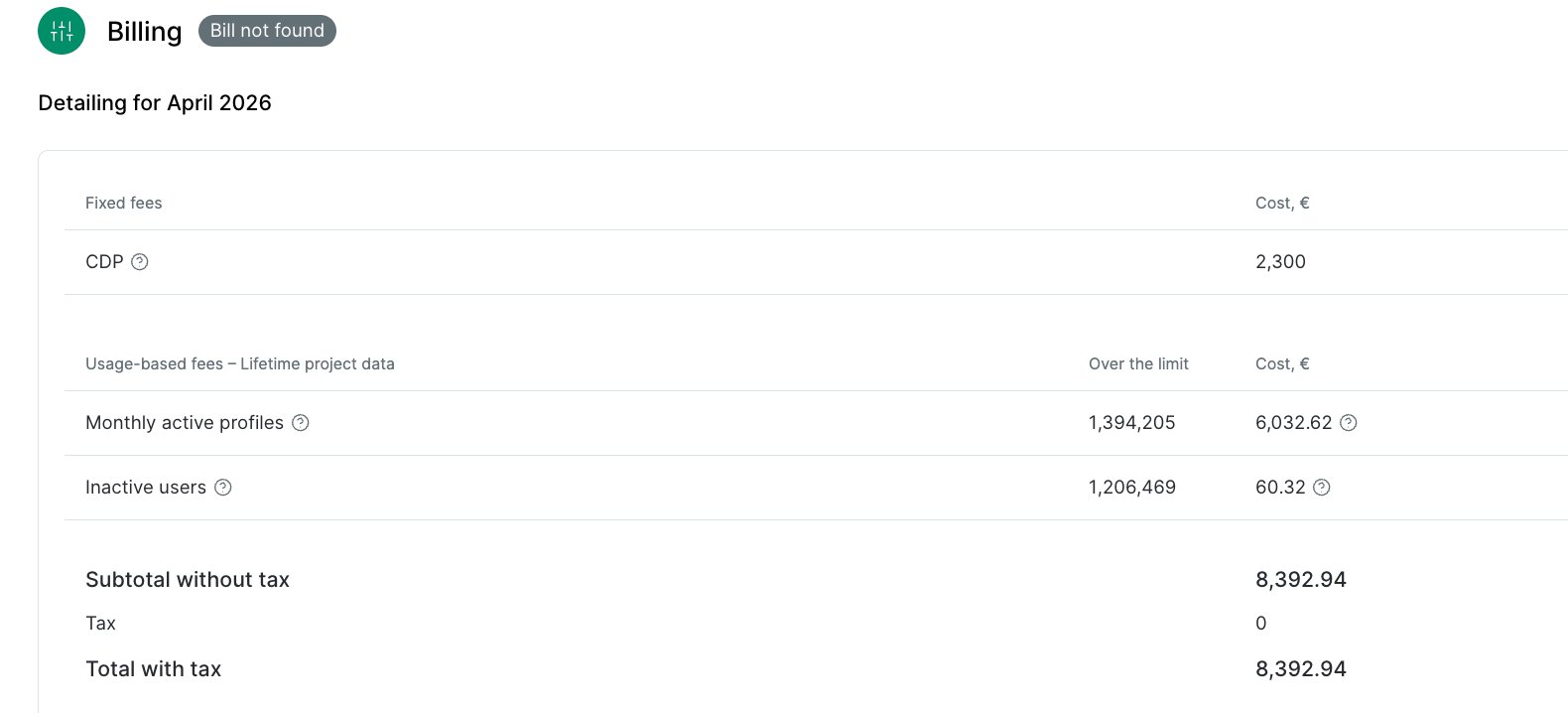
Why this page may not match your other reports. Campaign and analytics reports count what happened; billing counts what was stored and measured, at the moment of measurement. Deleted records, time zones, and the difference between a live and a fixed figure all contribute. If a number here looks wrong, contact support with the month and the metric.
Enabled modules
Below the main table, modules are grouped into tabs by product area. You only see the modules available on your plan, so the set of tabs and cards differs between projects.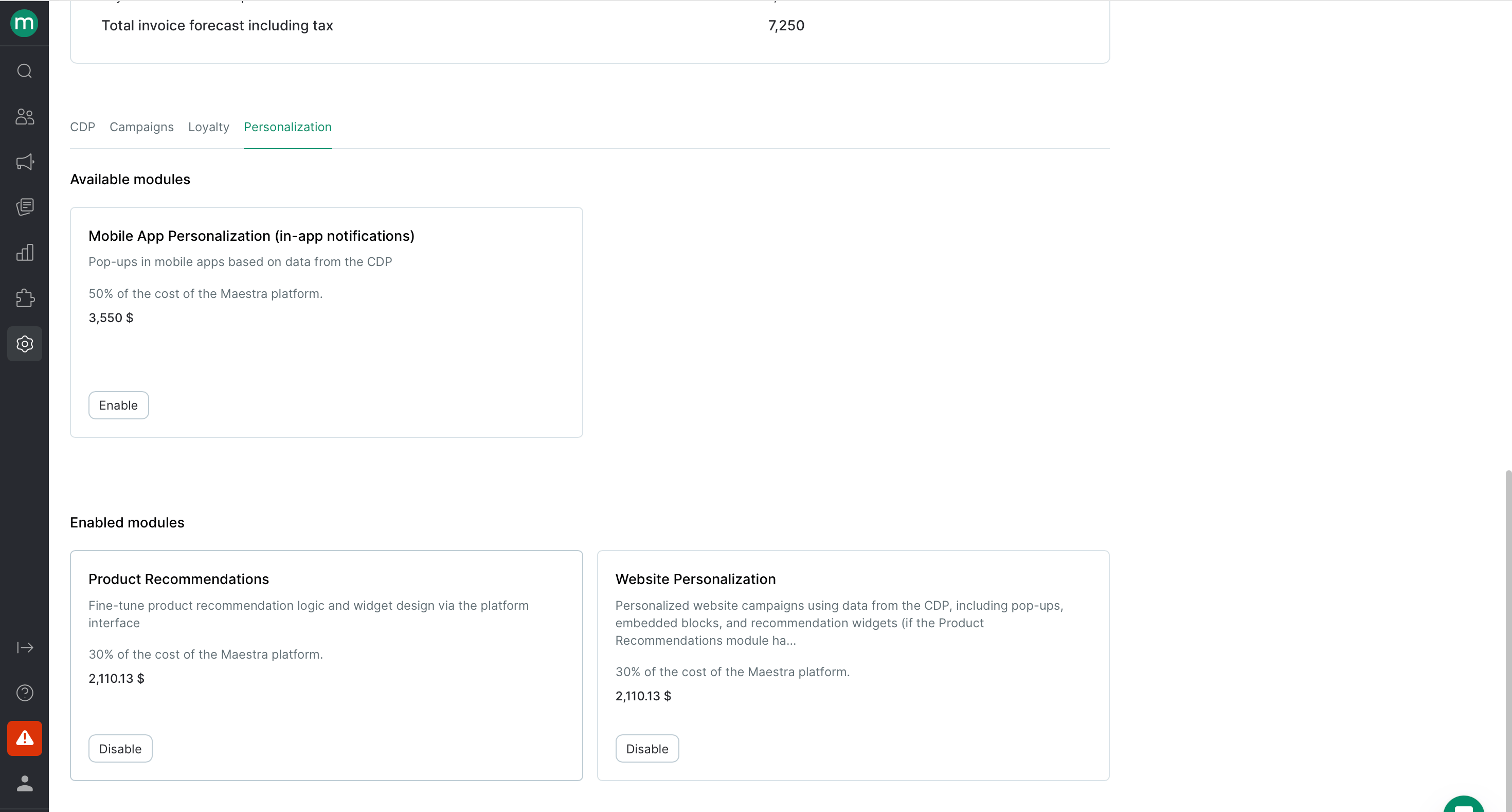
- the module name and what it does;
- its price — as an amount, as a percentage of the platform cost, or both, depending on your plan;
- an Enable or Disable button.
Turning a module on or off
Click Enable or Disable on the card. Available to the project owner, or to a role that’s been granted this permission.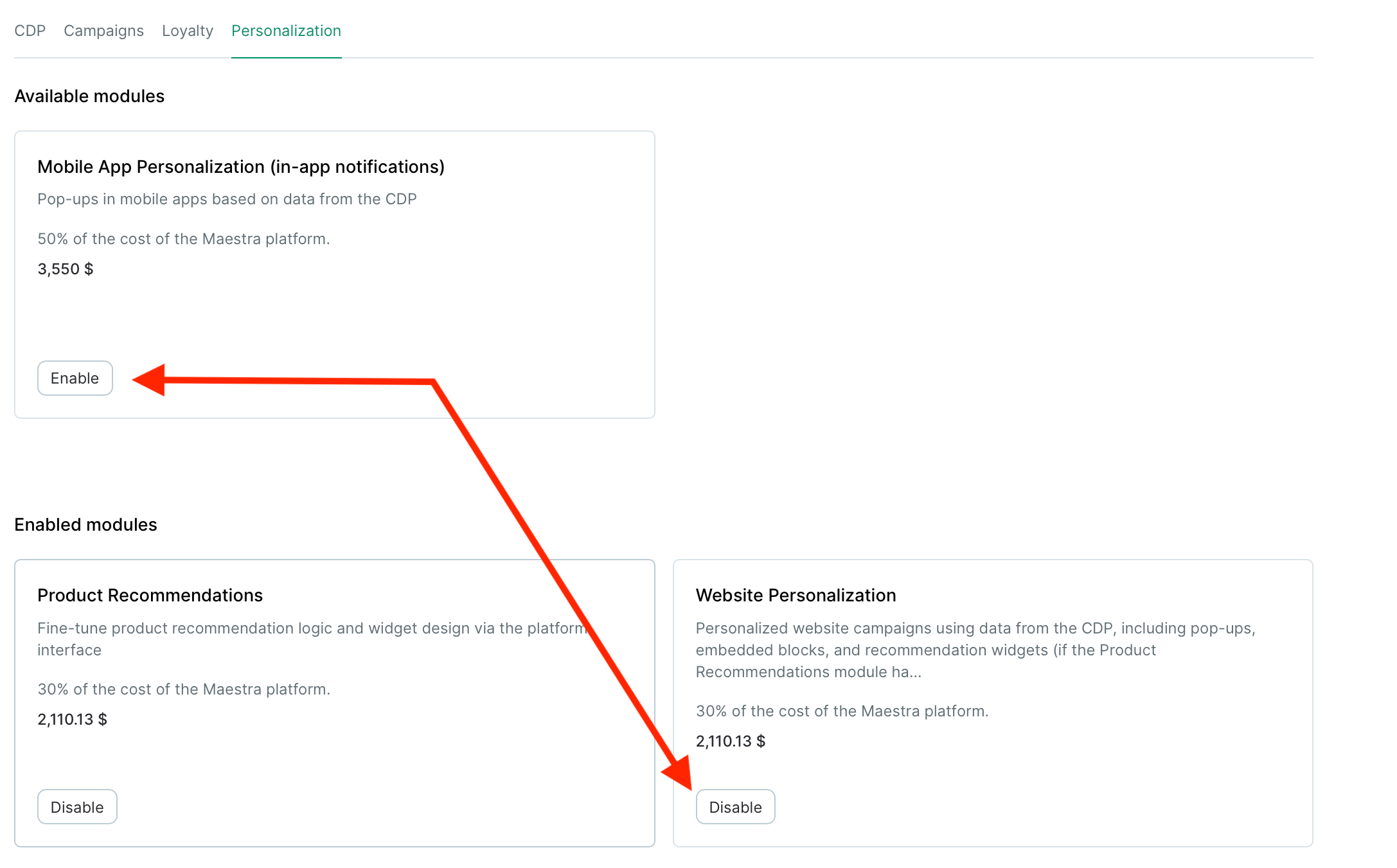
We recommend turning modules on and off on your side. Involving our CSM or Support team isn’t ideal — reserve it for exceptional cases, and always via a written email request.
- Disabling takes effect immediately — the functionality stops right away.
- Your settings and data are kept. If you enable the module again later, months later if you like, your configuration is still there. For details on your specific case, talk to your personal manager.
Canceling your subscription
You can cancel from this page. Once you confirm:- the subscription stops immediately;
- for 28 days you keep access to the project, so you can export whatever you need and delete data yourself;
- on day 29 access is closed;
- on day 30 the project is queued for automatic deletion;
- within 60 days the depersonalized backups are destroyed permanently and irreversibly.